Skipback AUv3 Manual
Table of Contents
Skipback AUv3
Skipback is a retrospective recorder for musicians and producers. It continuously keeps the last N seconds of audio and the last N MIDI notes in memory, so you can export a great take you just played without stopping the session or remembering to hit record first.
Audio passes through unchanged — Skipback is a transparent recorder, not an effect. When you are ready, export the captured window as:
- Audio — 24-bit PCM
.wav(internal capture is stereo float32 at the host sample rate) - MIDI — type-1 Standard MIDI File
.midwith separate tempo/time-signature and note tracks; timing uses the host BPM snapshot when available (defaults to 120 BPM, 4/4)
Skipback ships as two AUv3 components. Your host picks the right one based on where you insert it:
- Music Effect (
Signals Intelligence Sound: Skipback AUv3 Extension) — insert on an audio track. Captures stereo audio and MIDI routed to the plugin. Shows the input VU meter, record-time parameter, and both export buttons. - MIDI Processor (
Signals Intelligence Sound: Skipback AUv3 MIDI) — insert on a MIDI track or MIDI FX slot. Captures MIDI only; no audio history or audio export panel. Useful when your host does not support routing MIDI into an audio effect (see Ableton below).
System requirements
- iOS / iPadOS — 17.0 or later
- macOS — 14.0 (Sonoma) or later
Host compatibility testing is ongoing. See Host Specific Tips for per-host notes, and Known Limitations for current gaps.
Quick start
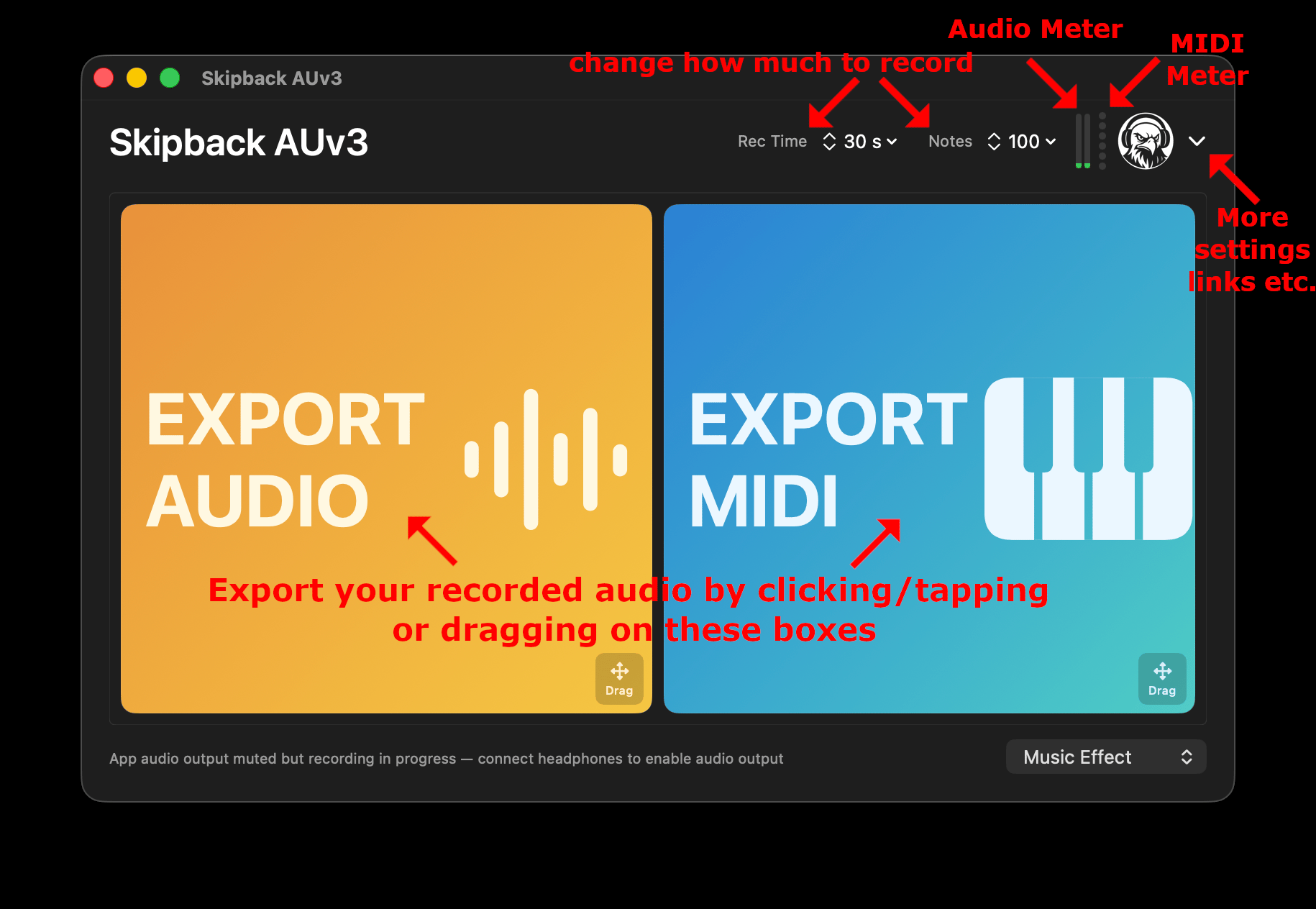
- Insert Skipback on the track you want to capture — the Music Effect variant on an audio track, or the MIDI Processor variant on a MIDI slot.
- Route MIDI to the plugin if you want retrospective MIDI export. The MIDI activity LED in the navbar confirms events are arriving.
- Play and watch the input VU meter to confirm adequate gain. Skipback records what it receives; very quiet input stays quiet in the export.
- When you nail a take, export immediately — the buffer is a rolling window, so older material is overwritten as you keep playing.
- Tap an export button to open the system save/share sheet, or drag the button into your DAW timeline or Finder (where the host supports drag-and-drop).
Exported files are named skipback-YYYYMMDD-HHmmss.wav or skipback-YYYYMMDD-HHmmss.mid.
UI Tour
The plugin UI is intentionally compact (~560×164 pt for the full Music Effect layout):
- Input VU meter — stereo level display in the navbar. Confirms the track is hot enough to capture usefully.
- MIDI activity LED — lights when MIDI events reach the plugin. If it stays dark while you play, check routing in your host.
- Time to record — audio history window: 10 s, 30 s (default), or 1 min. Music Effect only.
- Number MIDI notes — MIDI history depth: 100 (default), 1000, or 5000 complete notes (each note stores a note-on and note-off pair).
- Audio export button — drag or tap to export the audio skipback as WAV. Music Effect only.
- MIDI export button — drag or tap to export retrospective MIDI as
.mid. - Company logo menu — links to the Sigint Sound website supportlinks (e.g. Discord) and this manual.
Parameters & memory use
History sizes are modest so everything stays in RAM on iOS and macOS — there is no disk spill. Audio buffer size scales with your host's sample rate; the table below uses 48 kHz stereo float32 as a reference:
- 10 s — ~3.7 MB per Music Effect instance
- 30 s — ~11 MB per Music Effect instance
- 1 min — ~22 MB per Music Effect instance
MIDI history (100–5000 notes) is negligible by comparison — well under 1 MB per instance. Changing record time or note depth resizes buffers off the audio thread; you may notice a brief pause when switching to a larger window on slower devices.
Tip: If you mostly capture short bursts (a drum fill, a synth riff), 10 s keeps RAM low. For longer improvised sections, use 30 s or 1 min. For MIDI-heavy sessions with lots of overlapping notes, bump note depth before you start playing — once the ring fills, the oldest notes drop off.
Host Specific Tips
iOS
AUM
AUM is well supported. You can use Skipback in either Audio FX slots or MIDI insert slots (using the MIDI Processor variant, which hides the audio export panel), and audio/MIDI routing works as expected. Drag and drop is supported — for example, you can drag MIDI from Skipback into Helium by 4Pockets.
Cubasis
Cubasis loads Skipback and tap-to-export works. Drag-and-drop of MIDI from Skipback onto a MIDI track in Cubasis is confirmed to work.
GarageBand (iOS)
GarageBand on iOS is known to load the plugin. Tap/click export works as expected. Drag-and-drop export has not been tested yet.
Logic Pro for iPad
Logic Pro for iPad is a target host, but detailed compatibility notes are not finalized yet. If you use Skipback there, please reach out on Discord with what works and what does not — especially drag-and-drop into the timeline and MIDI routing into an audio-instrument track.
MacOS
Ableton
Ableton Live on Mac works with some host-specific quirks. First, enable AUv3 support under Settings → Plug-ins.
Audio capture works as expected: insert the Music Effect variant on an audio track and play. Export via tap or drag.
MIDI is trickier. Ableton does not support AUv3 MIDI FX, so the MIDI Processor variant cannot be used. Instead, route MIDI into the Music Effect on an audio track:
- Create an empty MIDI track with no audio FX — MIDI processors only.
- On that track's Output, choose the audio track that has Skipback inserted, and select Skipback as the MIDI destination.
- Confirm the MIDI activity LED lights when you play.
Drag-and-drop export works for both audio and MIDI. On Mac you may need to press and hold for about a second before dragging so Ableton recognizes the gesture.
TODO: screenshot of Ableton MIDI routing — the output routing UI is easy to miss.
Reaper
Reaper loads Skipback and tap-to-export works. Drag-and-drop has not been fully verified yet. If you are a Reaper user and can confirm drag behavior, please share notes on Discord.
GarageBand (Mac)
Not yet tested on macOS. Tap export and drag-and-drop behavior are unknown.
Logic Pro (Mac)
Logic Pro for Mac has not been tested by the developer yet. If you use Skipback in Logic, please reach out so we can document what works — especially AU insertion, MIDI routing, and drag-and-drop onto tracks.
Known Limitations
MIDI capture
- SysEx is not captured. System Exclusive messages are ignored at the plugin boundary and will not appear in exports.
- MIDI 2.0 channel-voice-2 messages are not captured — only MIDI 1.0 channel-voice-1 (note on/off, CC, pitch bend, program change, channel and poly pressure).
- MIDI timing in exports uses the host's musical context when available. If the host does not provide tempo or time signature, exports default to 120 BPM and 4/4.
Export & host behavior
- Koala Sampler — tap export works; Audio drag-and-drop works as expected; MIDI drag-and-drop into Koala does not. This is an implementation detail of Koala, and Elf Audio will have to support MIDI drag-and-drop to change this.
- If the buffer has not filled yet (you just inserted the plugin or shortened the record window), audio exports pad the beginning with silence so the file length always matches the selected window.
- Drag-and-drop support depends on the host. When in doubt, use tap-to-export and import the file manually.
Platform notes
- Skipback records audio and MIDI routed through the plugin. It does not magically capture audio from other tracks unless your host mixes them into the track where Skipback is inserted.
- Multiple instances on different tracks each maintain independent buffers (and RAM use scales per instance).